It is 2026, and someone out there has decided that a mobile shooter deserves a keyboard, a mouse, and a monitor the size of a small door. Can anyone blame them? Call of Duty Mobile still rewards twitchy aim and map awareness, and playing on a phone sometimes feels like commanding a tiny soldier with sausage fingers. The good news is that running the game on a PC is not some dark magic ritual. It mostly involves installing an emulator, clicking a few buttons, and waiting while the internet does its thing. But because old tutorials still circulate with dead links and pixelated screenshots, here is a refreshed guide with the same basic steps and a few modern survival tips.
First, the not-so-secret secret: the safest way to play Call of Duty Mobile on PC is through an official Android emulator. The game's ecosystem has long favored GameLoop, which used to be known as Tencent Gaming Buddy. It is essentially the official lane for players who want mouse-and-keyboard controls without setting off anti-cheat alarms. Other emulators like BlueStacks, LDPlayer, and MuMu Player can work, but they sometimes introduce quirks such as random frame drops, login issues, or the dreaded 'This version is not supported' message. Anyone who downloads a shady 'Call of Duty Mobile PC version' from a random site is basically volunteering for malware. Stick with a known emulator.
The basic installation checklist still looks like this:
-
Download a reputable Android emulator, preferably GameLoop.
-
Run the installer and complete the setup.
-
Open the emulator and find Call of Duty Mobile in its game center or banner.
-
Install the game inside the emulator.
-
Wait for the download to finish.
-
Launch the game, sign in, and customize the controls.
Second, the installation process has not changed dramatically since the original guide appeared in 2019. A player should start by downloading the emulator. On the official GameLoop page, the download should start automatically; if it does not, the blue download button is there to rescue the impatient. 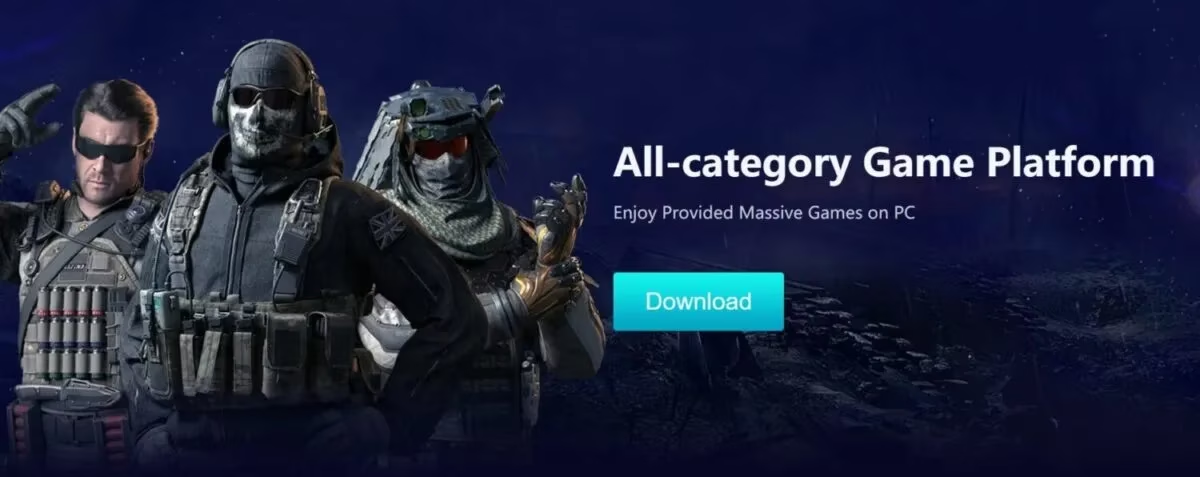
After the download completes, the next move is to run the installer and let the emulator settle into the system. This is not the time to click 'Next' blindly while ignoring every permission. Some emulators will ask for virtualization support, and it is actually useful to enable it in the BIOS. Without virtualization, the emulator may run slower than a potato-powered PC. Once the installation finishes, the emulator opens with a storefront or a game center. At the top, usually in a banner or a featured section, there is an option to install Call of Duty Mobile. One click starts the download. 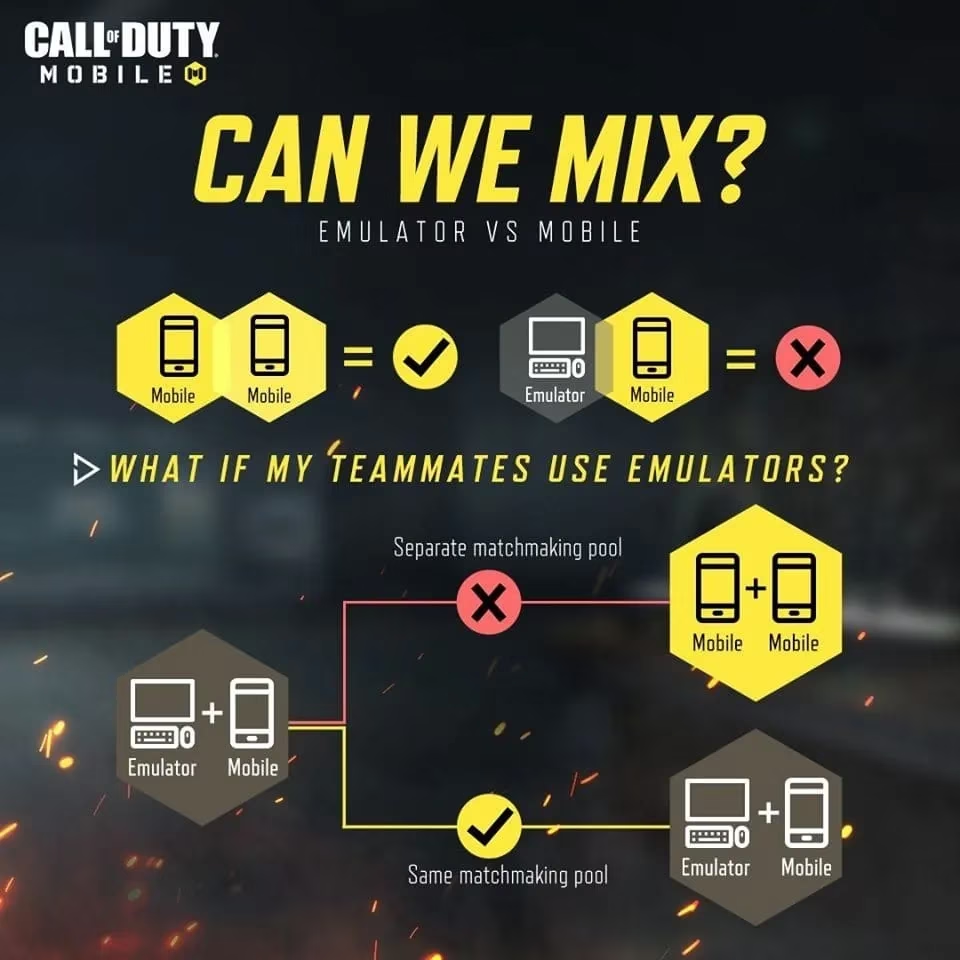
Then comes the hardest part for many players: waiting. The game file is not tiny, and the download speed depends on the connection. A player can use this time to hydrate, question their life choices, or watch a short video about why they are still playing a mobile game on a PC in 2026. Once the download finishes, the game appears in the emulator's library. A click on the icon launches it, and the player can sign in with an Activision, Facebook, or guest account, depending on what the current version supports.
Of course, there is a catch. Activision has made it clear that emulator players are matched with emulator players only. Was anyone hoping to stomp on touchscreen players while smugly clicking heads with a mouse? Too bad. The matchmaking system separates the pools, so emulator users fight against others who also have a keyboard and mouse. If a squad mixes mobile and emulator players, the whole lobby gets thrown into the emulator pool. It is fair, and it keeps mobile players from filing emotional damage claims.
Are there extra tricks for 2026? Yes. First, set up key mapping as soon as possible. Most emulators automatically apply a basic layout, but a clever player will customize the aim, fire, reload, crouch, and jump keys until the controls feel natural. Second, allocate enough system resources. Four CPU cores and at least four gigabytes of RAM are a reasonable starting point. Third, update both the emulator and the game regularly. Many black screens and infinite loading loops are just outdated software wearing a scary mask. Fourth, avoid macros, crosshair overlays, and sniper-button scripts. The anti-cheat systems have improved since 2019, and a ban is not a fun souvenir.
A quick emulator comparison can save some headaches:
| Emulator | Official support | Notes |
|---|---|---|
| GameLoop | ✅ Yes, preferred for COD Mobile | Formerly Tencent Gaming Buddy, safest route |
| BlueStacks | ⚠️ Works but unofficial | Generally strong performance, occasional login quirks |
| LDPlayer | ⚠️ Works but unofficial | Lightweight, but keep it updated |
| MuMu Player | ⚠️ Works but unofficial | Decent option, enable virtualization for best results |
One more thing: players often ask whether they should just play a native PC Call of Duty instead. That is a fair question. Call of Duty Mobile has its own charm, including maps, modes, and seasonal content that differ from the main PC titles. But if someone wants boots-on-the-ground PC action without emulation, there are plenty of official alternatives. Still, for those who enjoy the mobile version's progression and fast rounds, an emulator remains a solid choice.
In the end, downloading and playing Call of Duty Mobile on PC is less about technical wizardry and more about following a short checklist: get an emulator, install the game, wait, customize controls, and respect the matchmaking rules. If something goes wrong, checking virtualization, disk space, and internet stability solves most problems. Now go forth and let the killstreaks rain from the comfort of a real mouse. 🎮🖱️